
Most business owners have heard of Google Search Console. Far fewer have opened it more than once. That is a missed opportunity, because it is the only free tool that shows you what Google itself sees: which searches bring people to your site, which pages are indexed, and what is quietly going wrong.
Think of it as a direct line from Google to you. This guide walks through the reports that matter, how to read them, and the simple actions that often produce the fastest SEO gains.
What Google Search Console Does (and Doesn’t Do)
Google Search Console shows how your site performs in Google Search. It tells you:
- Which queries show your pages, and how often people click
- Which pages are indexed, and which are not
- Whether Google found problems with mobile usability, speed, or structured data
- Which sites link to you
- Whether there are manual actions or security issues
It does not tell you what visitors do after they land on your site. For that, you need Google Analytics. Used together, the two tools give you the full picture: Search Console shows how people find you, Analytics shows what they do next.
Step 1: Set It Up Correctly
Add your site as a property and verify ownership. Where possible, choose the domain property option, which covers every version of your site (with and without www, http and https) in one view.
Then do three things on day one:
- Submit your XML sitemap so Google knows which pages matter
- Link Search Console to Google Analytics for easier analysis
- Add the right people with appropriate permissions, including your agency or developer
Data starts appearing within a few days, though history builds over time, so set this up even if you do not plan to use it yet.
Step 2: Understand the Performance Report
This is the report you will use most. It shows four core metrics:
- Clicks: how many times people clicked through to your site
- Impressions: how many times your pages appeared in results
- CTR (click-through rate): clicks divided by impressions
- Average position: your typical ranking position for those searches
Use the filters to slice the data by query, page, country, and device. A few patterns to look for:
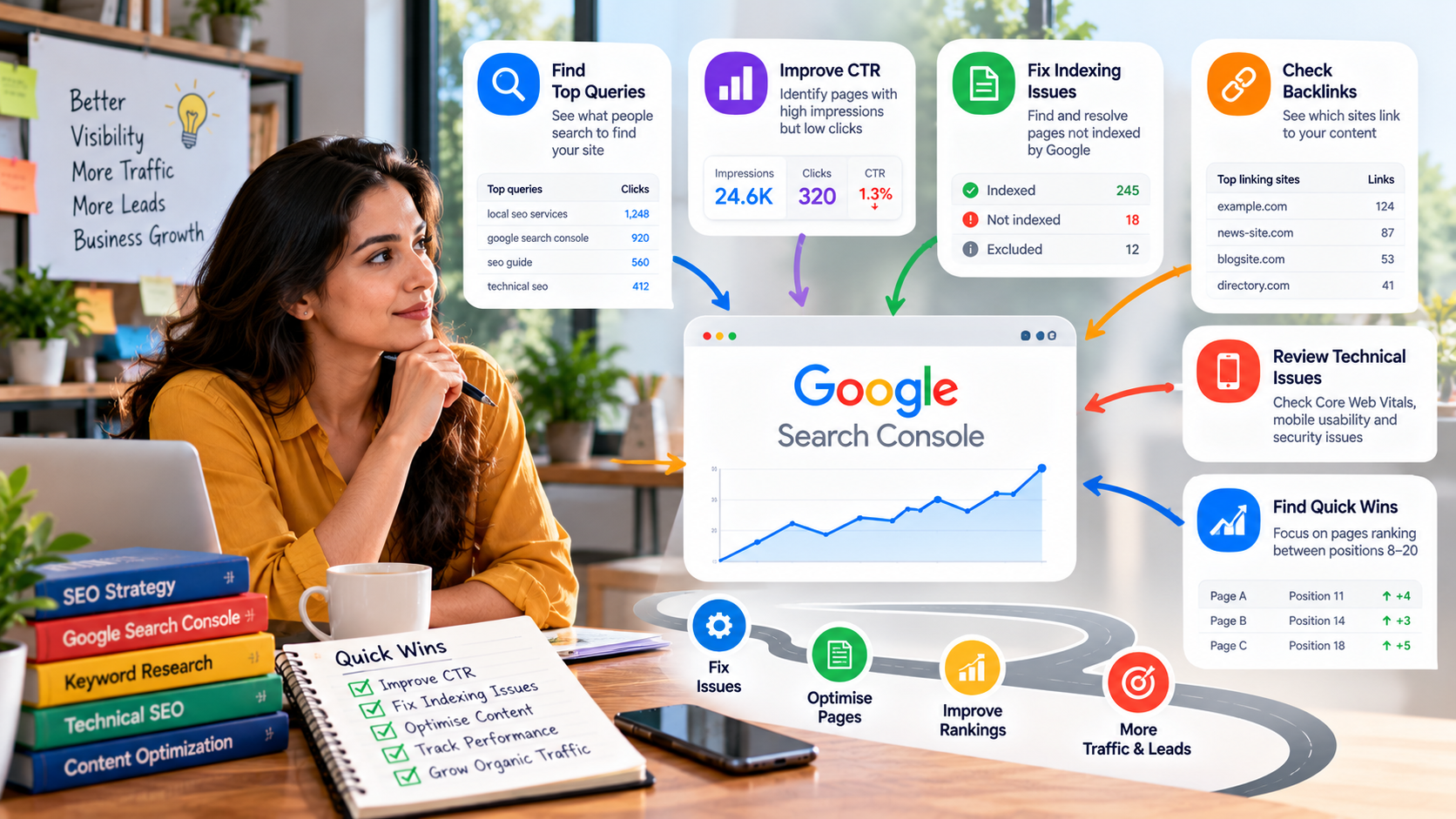
- High impressions, low clicks: your page appears but doesn’t attract clicks. Improve the title tag and meta description.
- Average position between 8 and 20: these pages are close to the first page and often respond quickly to small improvements.
- A sudden drop in clicks: check whether it follows a site change, a technical issue, or a seasonal pattern before panicking. It also helps to remember why organic visibility is worth protecting, as we explain in the value of organic SERP in 2026.
Remember that average position is an average. A page can rank first for one query and twentieth for another, so always look at queries individually.
Step 3: Quick Wins You Can Find in 30 Minutes
Here is a simple routine that works for most small business sites.
Quick win 1: Rewrite titles for pages with high impressions and weak CTR
Filter by page, sort by impressions, and look for pages with plenty of visibility but few clicks. Rewrite the title to include the main keyword naturally and a clear benefit. Keep it concise and honest.
Quick win 2: Boost pages sitting on positions 8 to 20
These are your “almost there” pages. Add depth where the content is thin, answer related questions, add internal links from stronger pages, and update outdated details. These pages usually move faster than new content.
Quick win 3: Find queries you did not know you ranked for
Scroll through the query list. You will often discover related searches your page ranks for by accident. If they are valuable, add a section that addresses them directly or create a dedicated page.
Quick win 4: Spot cannibalization
If two of your pages appear for the same query and keep swapping positions, they may be competing. Merge them, differentiate their focus, or point one to the other with internal links.
Step 4: Read the Indexing Reports
If a page is not indexed, it cannot rank. The Pages report shows which URLs are indexed and, importantly, why others are not. Common reasons include:
- Crawled, currently not indexed: Google visited but chose not to include the page, often because the content is thin or duplicated
- Discovered, currently not indexed: Google knows about the page but hasn’t crawled it yet, sometimes a sign of weak internal linking or crawl budget limits on large sites
- Blocked by robots.txt or noindex: sometimes intentional, sometimes a leftover from site development
- Duplicate without user-selected canonical: Google picked a different version than you intended
- Not found (404): pages that no longer exist, which may need redirects if they had links or traffic
Do not try to force every URL into the index. Filter pages, tags, and thin utility pages are often better left out. Focus on making sure your important pages, such as service pages, product pages, and key articles, are indexed and strong.
Use the URL Inspection tool to check a specific page, see how Google renders it, and request indexing after major updates.
Step 5: Check Experience and Technical Reports
Search Console includes reports that flag technical problems before they hurt you:
- Core Web Vitals: groups your URLs by loading, responsiveness, and visual stability. If many are marked “Poor” or “Needs improvement,” read our guide to Core Web Vitals and page speed optimization.
- Mobile usability: flags text too small, clickable elements too close together, or content wider than the screen
- HTTPS: confirms your pages are served securely
- Enhancements: shows whether structured data such as FAQ, product, or review markup is valid
Fix the issues affecting your highest-traffic pages first. A broader checklist is available in our technical SEO dos and don’ts.
Step 6: Use the Links Report Wisely
The Links report shows your top linked pages, top linking sites, and your most common anchor text. Use it to:
- See which content earns links naturally, and create more like it
- Spot unexpected or spammy-looking linking sites
- Confirm that your internal linking supports your priority pages
Pages with strong external links should pass that value onward through internal links to related service and product pages. If you are building authority deliberately, our link building services overview explains how quality placements work.
Step 7: Keep an Eye on Manual Actions and Security
Under Security & Manual Actions, Google tells you if it has penalised your site or detected hacking or malware. You will usually also receive an email, but checking occasionally takes seconds. If an issue appears, address it immediately and submit a reconsideration request once fixed.
Step 8: Make It a Monthly Habit
You do not need to live in Search Console. A 20-minute monthly routine is enough:
- Check clicks and impressions against the previous month and the same month last year
- Review the top ten queries and pages
- Look for new impressions on pages sitting between positions 8 and 20
- Scan the Pages report for new indexing problems
- Check Core Web Vitals and mobile usability for new warnings
- Note two or three actions for the next month
If you work with an agency, this data should feed directly into your monthly report. We cover how to structure that in white-label SEO reports clients actually read.
Common Mistakes to Avoid
- Obsessing over average position instead of looking at queries and pages individually
- Requesting indexing for everything, which doesn’t speed things up and distracts from real issues
- Ignoring warnings because the site “seems fine”
- Comparing short periods, which can be misleading because of seasonality
- Making changes without noting dates, which makes it hard to learn what worked
Final Thoughts
Search Console won’t do your SEO for you, but it will tell you exactly where to focus. A few small actions, such as better titles, improved near-first-page content, and fixed indexing issues, often deliver quicker returns than publishing something new.
If you would like an expert to review your Search Console data and turn it into a clear action plan, request a free SEO audit report or explore our SEO services.
